Best Laptop to Buy: A Checklist for Screen, Memory and Ports
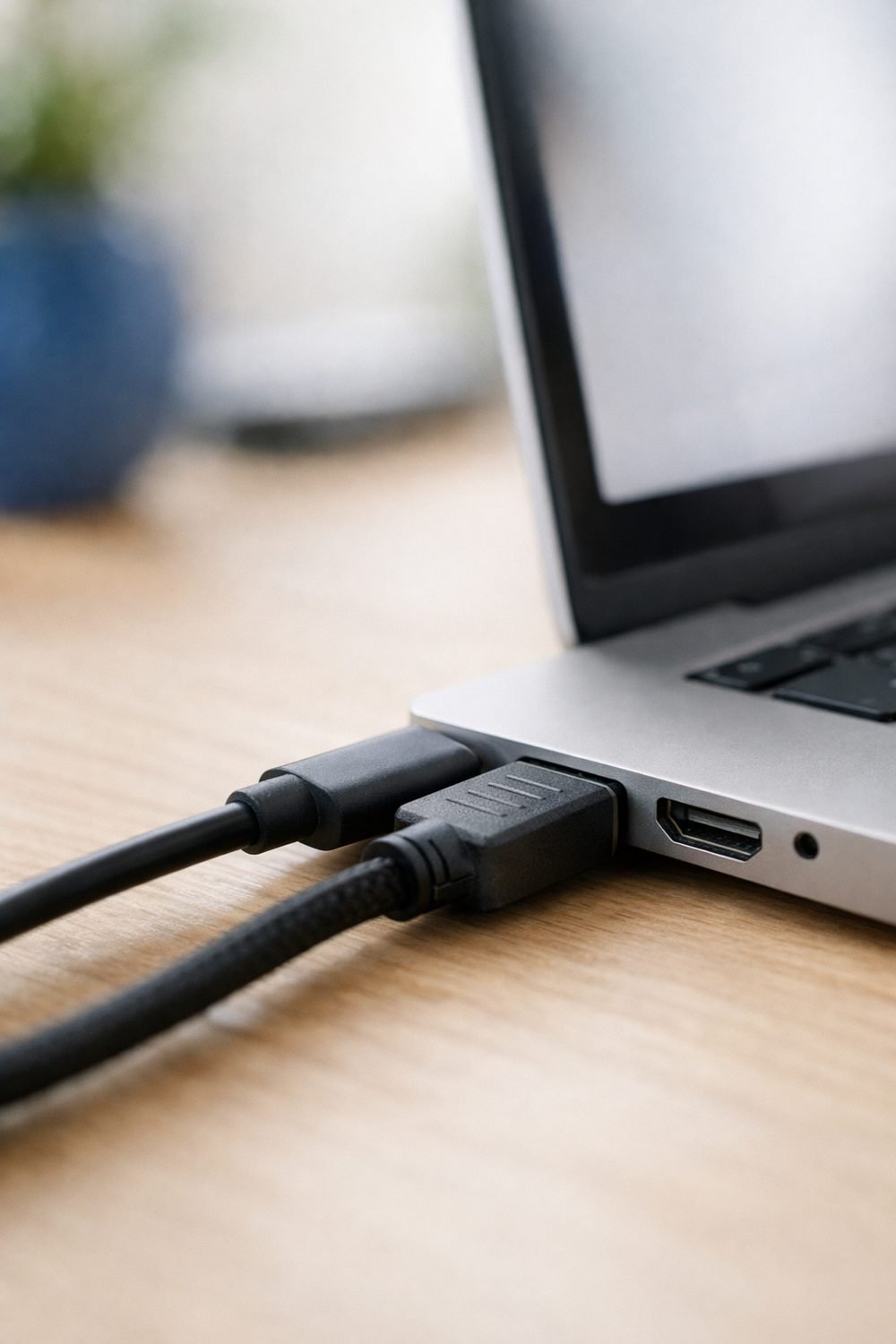
Finding the best laptop to buy is easier when you compare a few clear details instead of chasing big spec numbers. This checklist walks through the main job, screen, memory, storage, battery, ports, weight and price, so you can judge any laptop against your own needs.
Many people buy a laptop without thinking it through, and regret it later. It looked great in the store. Then I got it home, plugged in my wide screen monitor, and realized it had no port for it. Without the right ports, you may end up carrying a little adapter around like a lucky charm.
So this is the list I wish I'd had when hunting for the best laptop to buy. Run through it before you click buy. It won't pick a laptop for you, but it will help you skip the mistakes that only show up after the box is open.
Short on time? Our top picks: Apple MacBook Air, Dell XPS, Lenovo ThinkPad and HP Spectre. See all picks
1. Name the Main Job First When Choosing the Best Laptop to Buy
Before you look at a single spec, write down what you'll actually do on this laptop. Not what you might do someday. What you'll do on a normal Tuesday.
Browsing, email and writing need very little power. Photo editing, video work and big spreadsheets need a lot more. Gaming is its own thing entirely. If you skip this step, it's easy to get talked into paying for power you'll never use, or to buy something too weak and feel it slow down within a year.
Tip: Pick your top two tasks and keep them on a sticky note while you shop. When a spec sheet starts to blur, ask whether that feature helps with either task. If not, it's probably not worth extra money.
2. Check Screen Size, Resolution and Brightness
You'll stare at this screen for hours, so it deserves more attention than people give it. Size is the obvious part. Around 13 to 14 inches is easy to carry, which is handy if you want the best lightweight laptop. Around 15 to 16 inches is nicer for long work sessions but heavier in a backpack.
Resolution matters more on bigger screens. A low resolution stretched across a large display can make text look a bit soft. Brightness is listed in "nits" on most spec sheets. There is no magic number here, because it depends on where you work. If you often sit near a window or work outside, look for a higher stated brightness and compare a few models side by side.
Also check whether the screen is glossy or matte. Glossy looks rich in a dim room. Matte handles glare better. A matte screen is worth considering, and you can skip a touch screen unless you know you'll use it, since they can add cost and weight.
Tip: If you can, see the screen in person. Open a plain white page and a page of small text. Your eyes will tell you more than the spec sheet.
3. Look at Memory (RAM)
Memory is what lets your laptop juggle things at once. Lots of browser tabs, a video call, a music app running in the back. When you run out, everything starts to drag, and it gets annoying fast.
More memory helps with heavy multitasking. For light use, a modest amount is often fine. For creative work or many open apps, more gives you breathing room. The thing people miss is that on many thin laptops, memory is fixed to the board. You can't add more later. What you buy is what you live with.
Tip: Search the exact model name plus "upgradable RAM" before buying. If it can't be upgraded, lean toward a little more memory than you think you need today.
4. Look at Storage: Capacity and Type
Storage is where your files, apps and photos live. Two things matter here: how much space, and what kind of drive.
For type, a solid state drive (SSD) is what you want. It makes the laptop start up and open apps much faster than an older spinning hard drive. Most new laptops use SSDs now, but double check, especially if you're hunting for the best inexpensive laptop, such as an Acer Aspire.
For capacity, think about your habits. If you keep everything in the cloud, a smaller drive might be fine. If you store lots of photos, videos or games, space fills up quicker than you'd expect. Keep in mind that the system and updates take a chunk of it before you save anything.
Tip: Check how much space you're using on your current computer right now. That number is a much better guide than guessing.
By the way, if you're also shopping for someone else this season, our free Gift Ideas for Him Checklist, with 10 ideas sorted by interest, is yours when you join the email list.
5. Read the Stated Battery Details Carefully
Battery claims are where I've learned to be a little skeptical. The number on the box usually comes from the maker's own testing, often under light, ideal conditions. Your day probably won't match that.
Screen brightness, video calls, lots of tabs and heavy apps all drain the battery faster. That doesn't mean the stated figure is useless. It's helpful for comparing laptops from the same brand. Just don't plan your day around it.
Honestly, the best info comes from independent reviews that test the battery with real tasks like streaming or browsing. Look at a couple of those for any model you're seriously considering.
Tip: If you work away from outlets a lot, treat battery life as a top priority and be willing to trade a bit of power or screen size for it.
6. Check Ports and Charging
This is the one that got me. Ports are the boring part of a spec sheet, and that's exactly why people skip them.
Make a quick list of everything you plug in, including any monitor screen or touch screen monitor. A mouse, an external monitor, a USB stick, an SD card from your camera, headphones, a printer. Then check that the laptop actually has the right ports for them. Many slim laptops, such as the Apple MacBook Air, now have a limited set of ports, often USB-C. That's fine if your stuff is USB-C too, but if not, you'll need adapters or a dock.
Charging is worth a look as well. Some laptops charge over USB-C, which means one charger might work for your laptop and your phone. Others use their own special plug. Check the stated charger wattage on the seller's page if you plan to use a spare or travel charger.
Tip: Count how many ports are on each side. One lonely port on one side can be a real nuisance when you're charging and using a mouse at the same time.
7. Think About Weight and the Keyboard
These don't show up as big headline specs, but they shape how the laptop feels every single day. A pound or so may not sound like much until it's in your bag on a long walk.
The keyboard matters even more if you type a lot, and it is a big reason some people look at a Lenovo ThinkPad. Some feel shallow and mushy. Others feel firm and comfortable. A backlit keyboard is handy if you work in the evening. It's a small thing I'd now refuse to give up.
Tip: Type a full paragraph on it in a store if you can. Ten seconds of tapping won't tell you much.
8. Compare Prices Before You Commit
Laptop prices move around more than you might think, and that goes for laptop brands big and small. The same model can cost different amounts at different stores or at different times of year.
Once you've narrowed it to one or two choices, take a week to watch prices if you're not in a rush. Also check the return policy on the seller's page. A fair return window gives you time to test the screen, ports and keyboard at home.
If you like keeping things organized, the Laptop Buyer's Guide and Comparison Sheets below this post let you line up models side by side, and the Price-Watch Tracker for Laptops helps you note prices over time.
Tip: Write down the exact model number, not just the name. Small letters at the end can mean different memory, storage or screens.
Laptops Worth Putting on Your Shortlist
These are well-known laptop lines that tend to come up when people compare options. None of them is the right answer for everyone, so use the checklist above to test each one against your own two main tasks.
Apple MacBook Air
Suits people who want a slim, light laptop for writing, browsing and everyday work. Check the port selection against your accessories, since you may need an adapter or dock, and look at whether memory can be changed after purchase.
Dell XPS
A good fit for Windows users who want a polished, portable laptop for work and study. Check which screen option the exact model has, and confirm the ports match what you plug in.
Lenovo ThinkPad
Suits people who type a lot and want a keyboard that many reviewers pay close attention to. Models vary widely within the line, so check the exact model number for memory, storage and screen.
HP Spectre
Works for readers who want a stylish Windows laptop, including some convertible designs. Check weight and whether you actually need the touch screen before paying for it.
ASUS Zenbook
Suits shoppers who want a light Windows laptop without going straight to the most famous names. Check the screen type, battery reviews from independent testers and the available ports.
Acer Aspire
Worth a look if you are shopping on a tighter budget for everyday tasks. Check that it uses an SSD, and see whether the memory can be upgraded later.
Microsoft Surface Laptop
Suits people who like a clean design and a comfortable typing setup for office-style work. Check the port count carefully and confirm the charging method before you buy.
Check current plans and prices on each brand's own site before you decide.
FAQ
How much memory do I really need?
It depends on what you do. Light browsing and writing need less, while editing and heavy multitasking need more. If the memory can't be upgraded later, it's usually smart to get a bit more than your current needs.
Are battery life claims accurate?
They're usually based on the maker's own tests, which tend to be lighter than real use. Use them to compare models, but check independent reviews for a more realistic picture.
Is a USB-C only laptop a problem?
Not if your accessories are USB-C too. If they aren't, you'll need adapters or a dock, so list your devices before you buy.
Should I buy a touch screen laptop?
Only if you know you'll use it, like for sketching or taking notes, though a drawing tablet with screen may suit artists better. Otherwise it can add cost and weight without much benefit for everyday work.
Your Next Step
Grab a notebook, write down your two main tasks, and run each laptop you like through this list. It takes maybe twenty minutes and can save you years of mild regret. If you haven't yet, get the free Gift Ideas for Him Checklist by joining the email list. Then take a look at the Laptop Buyer's Guide and Comparison Sheets and the Price-Watch Tracker for Laptops below this post to keep your shortlist and prices in one place.
Printables and tools that can help
Laptop Buyer's Guide and Comparison Sheets
A printable guide and comparison sheets to write down what matters to you before you look at any seller...
See detailsPrice-Watch Tracker for Laptops
A browser notebook where you enter the prices you see and it tells you when you reach your own...
See details