How to Back Up Your Files: The 3-2-1 Idea
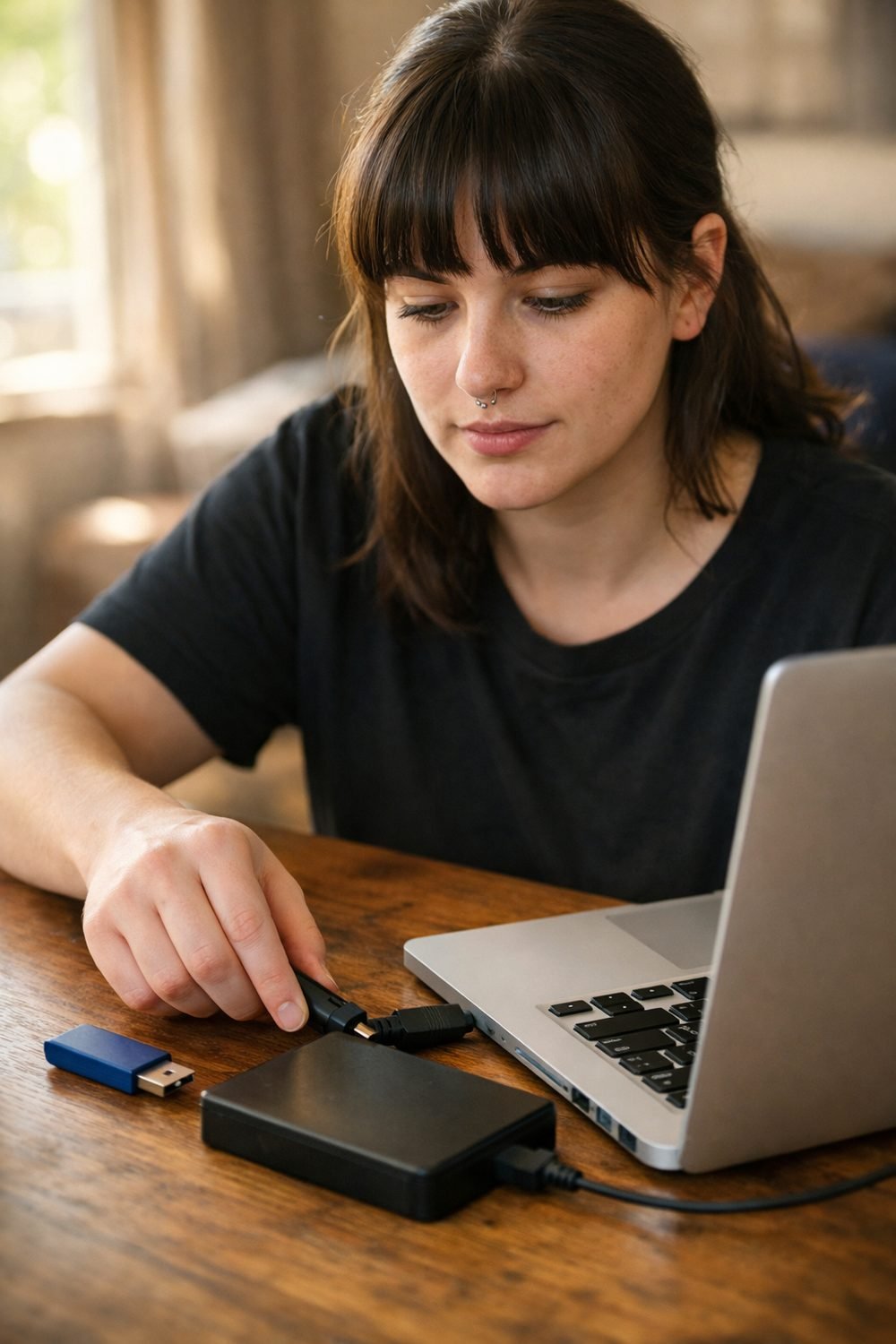
Losing a whole folder of photos is a common way people learn how to back up files the hard way. It was a laptop that wouldn't turn on one morning, and I'd been meaning to "sort out backups" for about two years. The repair shop got most of it back, but not all. Since then I've followed a simple rule called 3-2-1 for how to back up files, and I haven't had that sinking feeling again.
Here's the idea in one line: keep three copies of your files, on two kinds of storage, with one copy away from home. That's it. It sounds fussy, but once it's set up it mostly runs by itself.
This 3-2-1 backup guide walks you through it step by step. You don't need to be a tech person. If you can copy a file and plug in a USB drive, you can do this.
Short on time? Our top picks: Western Digital external drives, Samsung portable SSDs, Seagate external hard drives and Backblaze. See all picks
What you need
- The computer or phone with the files you care about
- An external drive (a USB hard drive or SSD, such as a Western Digital or Samsung model) with more space than the files you want to save
- A cloud storage account, or a second drive you can keep somewhere else, like at work or a family member's house
- About an hour for the first setup, then a few minutes a month
- A notebook or app to jot down what you backed up and when
For drive sizes, I'd go bigger than you think you need. Photo libraries grow fast. Check the seller's page for the real capacity and what's included, since the number on the box and the usable space aren't always the same.
Step 1: Figure out what actually matters
Before you buy anything or copy anything, take ten minutes and make a list of what you'd be upset to lose. For most people it's photos, videos, documents, school or work files, and maybe saved passwords or tax records.
Things you can download again, like apps, games, and movies you bought, usually don't need backing up. Skipping them saves a lot of space and time.
Open your main folders and look. You might be surprised. You may find important files sitting on your desktop and in your Downloads folder that you would never have thought to include.
Tip: If your files are scattered all over, make one main folder (I call mine "Keep") and move the important stuff into it. Backing up one folder is far easier than chasing ten.
Step 2: Keep three copies of your files
The "3" means your original files plus two backups. Why two? Because backups fail too. Drives die, accounts get locked, and sometimes you only find out a backup was broken when you need it.
Your three copies will look something like this:
- The original, on your computer
- A copy on an external drive at home
- A copy in the cloud or on a drive kept somewhere else
Start with copy number two. Plug in your external drive, open it, and drag your "Keep" folder onto it. For a first try, plain copying is fine. Later you can use the built-in backup tool on your computer (Windows and Mac both have one, and Microsoft OneDrive can also cover your main folders on Windows) so it happens on its own.
Tip: Don't treat a synced folder as your only backup. If you delete a file on your computer, a sync service may delete it everywhere. Look for a version history or "trash" feature, and check how long it keeps old files.
Step 3: Use two kinds of storage
This is the part people skip. If all three copies sit on the same type of thing, one problem can hit them all at once. Two USB drives bought on the same day, kept in the same drawer, aren't really two kinds of storage.
The easy mix for most homes is a physical drive plus the cloud. One you can hold, one that lives on someone else's servers. They fail in different ways, which is the whole point.
If you'd rather not use the cloud, that's okay. You can use an external hard drive and a separate SSD, or a drive plus a home network storage box. Just aim for different devices that don't share the same weak spot.
Tip: Honestly, I think buying a fancy rugged drive is a bit overrated for most people. A plain, well-reviewed drive kept on a shelf, away from spilled coffee, does the job.
Step 4: Keep one backup copy off-site
If there's a fire, a flood, or a break-in, a backup drive sitting next to your laptop goes with it. That's why one copy needs to live somewhere else.
The cloud handles this nicely, since it's off-site by default. Pick a service such as Backblaze or Google One, install its app, and point it at your "Keep" folder. The first upload can take a long time, sometimes days for big photo collections, so let it run overnight.
No cloud? Put a second drive at a trusted friend's or relative's place, or in a desk at work. Swap it every month or so with a fresh copy. We'd swap drives over Sunday lunch, which made it oddly easy to remember.
Tip: Check what your cloud plan's free tier covers before you start uploading everything. Storage limits and prices change, so look on the provider's own page.
If you like getting small, practical lists in your inbox, you can grab my free Gift Ideas for Him Checklist - 10 Ideas by Interest by joining the email list.
Step 5: Protect your backups with a password
A backup drive holds the same private stuff as your computer. If it gets lost or stolen, whoever finds it can read everything. That's worth thinking about.
Where it makes sense, turn on encryption. Both Windows and Mac have built-in options for encrypting an external drive. Many cloud services also offer two-step login, where you need a code from your phone as well as your password. Turn that on.
Here's the catch: if you forget the password on an encrypted drive, your files may be gone for good. Write it down and keep it somewhere safe, like a password manager or a sealed note in a drawer that isn't next to the drive.
Tip: I'd skip encrypting a drive that only holds things like old music files. Save the effort for drives with documents, ID scans, or financial records.
Step 6: Test a restore of your backed up files
A backup you've never tested is really just a hope. Once in a while, try getting a file back.
Pick a few files: a photo, a document, maybe a video. Copy them from your backup drive to a new folder on your computer and open them. Do the same from the cloud. If they open and look right, good. If not, you've found the problem now instead of on a bad day.
The first time you check, you may find your backup tool has quietly stopped running weeks earlier. Nothing scary had happened yet, but it could have.
Tip: Don't restore over your original files. Always put test copies in a separate folder so you don't accidentally replace a newer version with an older one.
Step 7: Set a monthly reminder
This is the boring step, and it's the one that makes everything else work. Put a repeating reminder in your phone for the same day every month. First Sunday works for me.
When it pops up, spend about ten minutes:
- Plug in the external drive and let the backup run
- Check the cloud app says it's up to date
- Restore one or two random files to make sure they open
- Write the date in your notebook
If you like having things on paper, the Tech Gear Planner and Checklist Bundle below this post has checklist pages that work well for logging backup dates. A plain notebook does the job too, though.
Tip: Leave the drive unplugged between backups. A drive that's always connected can get hit by the same virus or power surge as your computer.
Troubleshooting
The backup is taking forever
The first backup is always the slowest because it copies everything. After that, most tools only copy what changed. Use a USB port that matches your drive's speed if you can, and leave it running overnight.
My drive isn't showing up
Try a different cable and a different port first. Cables fail more often than you'd think. If it still won't appear, check your computer's disk tool to see if the drive is listed there. If a drive with important files starts making clicking sounds, stop using it and ask a data recovery professional.
I ran out of space
Look for duplicates and huge video files you don't need. Clearing out old phone backups and downloads helps too. If you're still short, a bigger drive or a larger cloud plan may be the simplest fix.
The cloud keeps pausing
Some apps pause on slow connections, low battery, or mobile data. Check the app's settings, plug in your laptop, and use Wi-Fi.
If your whole home office setup feels messy and you're not sure where backups fit in, the Tech Gear Starter Guide for Home Office and Study below this post covers the basic gear in one place.
Backup tools and storage worth a look
Here are some well-known options for each part of the 3-2-1 setup. Pick the ones that fit how you work and what you already own.
Western Digital external drives
A familiar name for plain USB hard drives and SSDs, and a fair fit if you want a simple home copy. Check the real capacity and whether the drive suits your computer's ports before you buy.
Samsung portable SSDs
Suits people who want a small, quick drive for photos and documents. Check the capacity, the cable type, and whether it works with both your computer and phone.
Seagate external hard drives
Another long-standing maker of external drives, often chosen for larger photo and video libraries. Check what backup software is included and whether you would use it.
Backblaze
A cloud backup service built around backing up a whole computer, which suits people who want it to run quietly in the background. Check how long it keeps deleted or older file versions and how it handles external drives.
iCloud
Suits anyone who mostly uses an iPhone, iPad or Mac and wants photos and files saved automatically. Remember that sync is not the same as a full backup, so check how deleted files are handled.
Google One
A handy choice if you already use Google Photos, Drive or an Android phone. Check how the storage is shared across your Google services before you rely on it.
Microsoft OneDrive
Suits Windows users who want their Documents and Pictures folders saved off-site with little effort. Check the file recovery options and how much space your plan includes.
Synology home storage boxes
For people who would rather skip the cloud, these network storage devices keep a copy on your home network. Check that you are comfortable with the setup, and remember it still needs a copy kept away from home.
Please check current plans and prices on each brand's own site before you decide.
FAQ
Is cloud storage alone enough to back up files?
It's better than nothing, but it only gives you one backup copy. Accounts can get locked, and deletions can sync. Pair it with an external drive and you've got real 3-2-1 coverage.
How often should I back up?
Monthly is a good minimum for most people. If you work on files daily, like school projects or client work, set your backup tool to run automatically every day. Ask yourself how much work you'd be okay redoing.
Does my phone need this too?
Yes, especially for photos. Most phones can back up to the cloud automatically. Every few months, also copy your photos to your computer so they're included in your other backups.
How long do external drives last?
It varies a lot, and I can't give you a reliable number. That's exactly why you keep more than one copy. If a drive starts acting strange, replace it before it fails completely.
Your next step is small: pick your "Keep" folder today and copy it to one other place. Once that's done, the rest gets easier. If you'd like more simple, useful lists from me, grab the free Gift Ideas for Him Checklist by joining the email list. Then take a look at the Tech Gear Starter Guide and the Planner and Checklist Bundle below this post if they suit how you work.
Printables and tools that can help
Tech Gear Starter Guide for Home Office and Study
A plain-English starter guide to choosing and setting up gear for a home office or study space. General...
See detailsTech Gear Planner and Checklist Bundle
A printable bundle with a 30-day goal page, weekly planner and setup checklists for your home office or study...
See details