Smart Plugs and Power Strips: What to Check
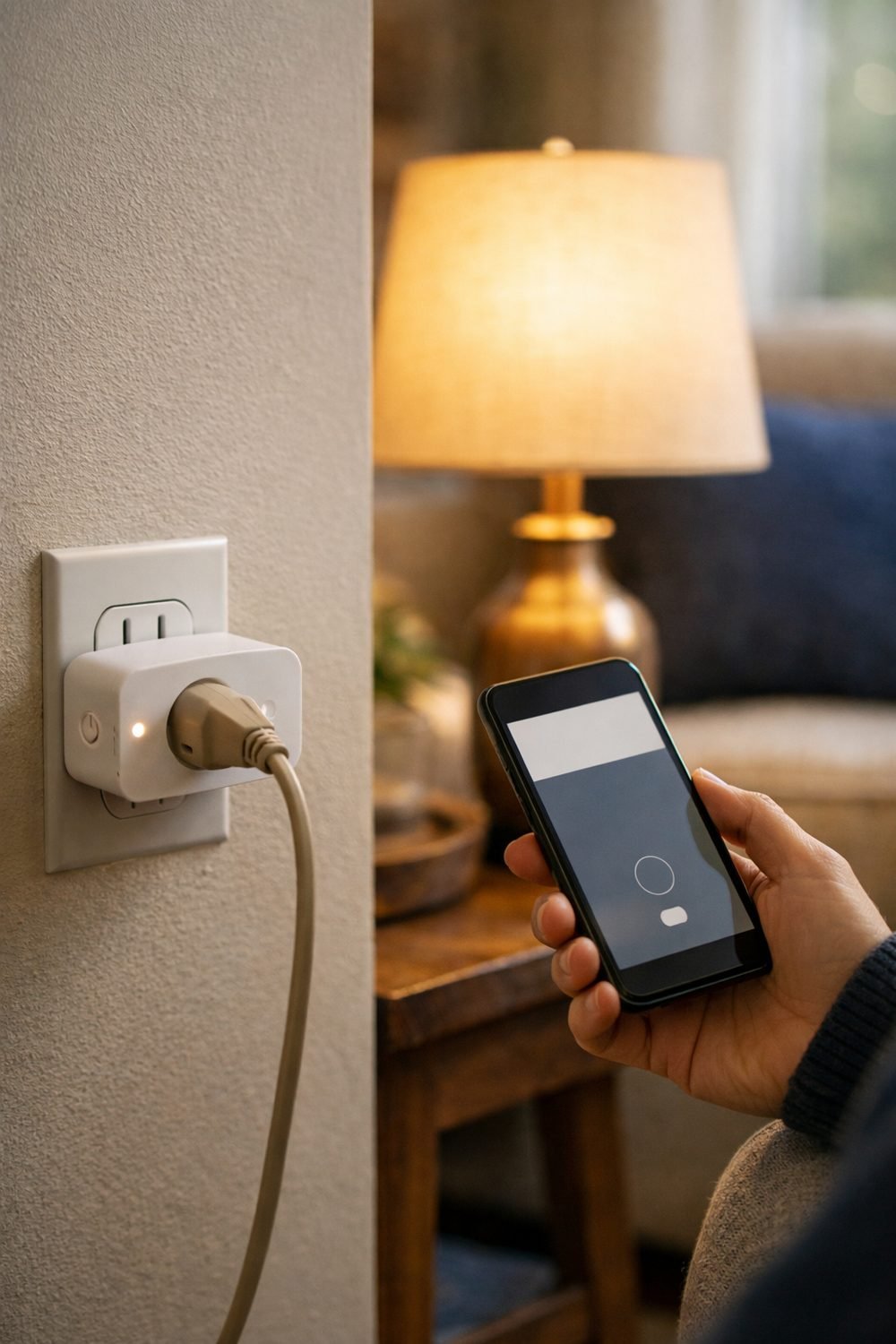
It's easy to assume a power strip is just a power strip. A plug under a desk that gets warm enough to feel through a sock is a warning sign. Nothing bad happened, but it made me stop and actually read the label for the first time. Smart plugs and power strips look simple, and most of them are fine. Still, a few minutes of checking before you buy can save you from a cheap one that doesn't fit your setup, or worse, one that isn't meant for what you're plugging in.
This post walks through what I look at now, in roughly the order I check it. None of it needs special tools. You just need the box, the product page, and a quick look at the gear you plan to plug in.
Short on time? Our top picks: Kasa Smart Plug (TP-Link), Amazon Smart Plug, Wemo Smart Plug (Belkin) and Philips Hue Smart Plug. See all picks
Check the Rating Against Your Devices
Every plug and power strip has a rating printed somewhere. It's usually on the back, the bottom, or the box. You'll see numbers for amps, watts, or both. This tells you how much power the strip or plug is built to handle.
Now look at your devices. Most chargers, lamps, and monitors have a small label or a line in the manual that says how much power they use. Add up what you'll plug in at the same time. If the total gets close to the strip's rating, that's a sign to rethink it.
Here's where smart plugs catch people out. Many, such as the Kasa Smart Plug, are made for light stuff like lamps, fans, or a coffee maker you want to switch on in the morning. Some product pages say they're not meant for space heaters or other high-draw items. If the page says that, believe it. It is better to buy a plug rated for the job than to guess.
If you can't find the numbers or you're not sure how to read them, ask an electrician. That's not me being dramatic. It's just a question they answer all the time.
Look for Safety Marks
Safety marks are the little logos from testing groups that show a product was checked against certain standards. Which marks matter depends on where you live, so I won't list them as if one set fits everyone.
What I do is simple. Check the product page and the box to see which safety marks the seller lists. Then I check that the mark is actually printed on the product itself, not only in the listing photos. If a listing says "certified" but won't say by whom, I move on.
Honestly, this is the step I'd never skip. A nice app and a pretty design don't mean much if the thing hasn't been tested.
A note on surge protection
Not every power strip is a surge protector, even if it looks like one, so a product from a line like APC surge protectors should say so clearly on the label. If you want surge protection for a computer or TV, the product should say so clearly and usually lists a rating for it. A plain strip just gives you more outlets. Both are useful. They're just not the same thing.
Count the Outlets You Actually Need
This sounds obvious, but I've gotten it wrong twice. It is easy to count your plugs and buy a strip with exactly that many outlets, then find that bulky chargers cover the outlet next to them.
So before you buy, try this:
- Lay out everything you'll plug in on the floor or desk.
- Note which plugs are bulky or angled.
- Add one or two spare outlets for the thing you'll buy next month.
- Check the spacing between outlets in the product photos.
Built-in USB ports, like those on many Anker power strips, are handy for phones and small gadgets. They can be worth having. But check what they're rated to deliver, because some are slow and won't charge a tablet quickly. For a laptop, I still use the laptop's own charger.
If you're redoing your whole desk, the Desk Setup and Cable Organization Planner below this post helps you map out where everything goes before you start buying things. It's what I wish I'd had before that second wrong strip.
Check the Cord Length (and the Plug Shape)
Cord length is one of those things you only notice when it's wrong. Too short and the strip hangs in the air, pulling on the wall outlet. Too long and you've got a coil of extra cable sitting under your desk collecting dust.
Measure from the wall outlet to where you want the strip to sit. Follow the path the cord will actually take, around the desk leg and along the wall, not a straight line through the air. Then add a little slack.
The plug shape matters too. A flat or angled plug can sit flush behind furniture, which is great if your desk or couch is pushed against the wall. A straight plug sticks out and can get bent over time.
For smart plugs, think about size. Some are chunky and will block the second outlet on a wall plate. If you need both outlets free, look for a slimmer one and check the measurements on the product page.
Quick side note: if you're shopping for someone else, our free Gift Ideas for Him Checklist - 10 Ideas by Interest is yours when you join the email list, and it has a few tech-friendly picks in it.
Think About the Smart Features You'll Really Use
Smart plugs come with a lot of promises. Schedules, timers, voice control, energy readings, away modes. Some are nice. Some I set up once and never touched again.
The most useful features are schedules and turning things off from your phone when you've left the house and can't remember if you switched off the lamp. That's about it. Energy tracking was interesting for a week. Your mileage may vary.
Before buying, check these things on the seller's page:
- Which apps or voice assistants it works with, and whether you already use one of them.
- Whether it needs a separate hub, or connects straight to your Wi-Fi.
- Which Wi-Fi bands it supports, since some only work on one.
- Whether you need an account to use it at all.
You can skip any plug with an app that has poor reviews about connection drops. A smart plug that randomly goes offline is just a regular plug with extra steps.
Avoid Daisy-Chaining
Daisy-chaining means plugging one power strip into another, or plugging a strip into an extension cord. People often do this in rooms with only one outlet. It may seem to work, but most manuals say not to.
The short version is that chaining can put more load on a single outlet than it was meant for. Read the manual for your strip. Many say plainly not to plug it into another strip or extension cord. Follow that.
If you're running out of outlets, it's usually better to get one strip with more outlets and the right rating than to stack two smaller ones. And if a room just doesn't have enough outlets for how you live in it, that's a good question for an electrician.
Read the Return Terms Before You Buy
It's boring, but it matters. But smart plugs especially can be fussy. Some won't connect to certain routers, and you won't know until you try. Knowing you can send it back makes the whole thing less stressful.
Look for how many days you have to return it, whether opened items are accepted, and who pays for shipping back. Also check the warranty, if there is one, and what it covers. Keep the box for a couple of weeks. Throwing away packaging too soon is a common regret, so keep it for a while.
If you like keeping track of this kind of thing, the Tech Gear Planner and Checklist Bundle below this post has space to note return dates and what you bought where.
Smart Plugs and Power Strips Worth a Look
These are well-known options to start your research with. Each one suits a different kind of setup, so match the pick to your devices and your home.
Kasa Smart Plug (TP-Link)
A familiar choice for people who want simple schedules and phone control for lamps and fans. Check which voice assistants it works with and which Wi-Fi bands it needs before you buy.
Amazon Smart Plug
Suits anyone who already uses Alexa and wants an easy setup. Check that it fits your wall plate without blocking the second outlet.
Wemo Smart Plug (Belkin)
A good fit if you want a smart plug from a long-established home electronics brand. Check which apps and assistants the current model supports, since support can change.
Philips Hue Smart Plug
Makes sense if you already run Hue lights and want everything in one app. Check whether you need a separate hub for the features you want.
Anker Power Strips
Suits desks that need several outlets plus USB ports for phones and small gadgets. Check the USB output rating and whether the listing names the safety marks for your region.
Belkin Surge Protector Power Strips
Worth considering for a computer, TV, or other gear you want protected. Check that the label clearly states surge protection and lists its rating.
APC Surge Protectors
A known name for protecting desktop setups and home office equipment. Check the outlet spacing and cord length against your desk layout.
Check current plans and prices on each brand's own site before you decide.
FAQ
Can I plug a space heater into a smart plug?
Only if both the heater's manual and the smart plug's product page say it's okay. Many smart plugs are not meant for high-draw items like heaters. When in doubt, plug the heater straight into the wall and check the heater's instructions.
Is a power strip the same as a surge protector?
No. A surge protector is a type of power strip that's built to help with power surges, and it should say so on the label. A basic strip just gives you more outlets.
Do smart plugs work without Wi-Fi?
It depends on the model. Some have a button you can press to switch them on and off, and some keep schedules running offline, but many smart features need a connection. The seller's page should explain what works without it.
How many devices can I plug into one strip?
It's less about the number of outlets and more about the total power. Add up what your devices use and compare it to the strip's rating. If you're unsure, ask an electrician.
Summary
Check the rating against what you'll plug in. Look for real safety marks on the product itself. Count outlets with bulky plugs in mind, measure the cord path, and pick smart features you'll actually use. Don't chain strips together, and read the return terms before you buy.
If you want a next step, grab the free Gift Ideas for Him Checklist by joining the email list. Then take a look at the Desk Setup and Cable Organization Planner and the Tech Gear Planner and Checklist Bundle below this post if you're planning a tidier setup.
Printables and tools that can help
Desk Setup and Cable Organization Planner
Printable pages to plan a tidy desk, label cables and map charging...
See detailsTech Gear Planner and Checklist Bundle
A printable bundle with a 30-day goal page, weekly planner and setup checklists for your home office or study...
See details