USB-C Chargers for Earphones, Phones and More: What to Check
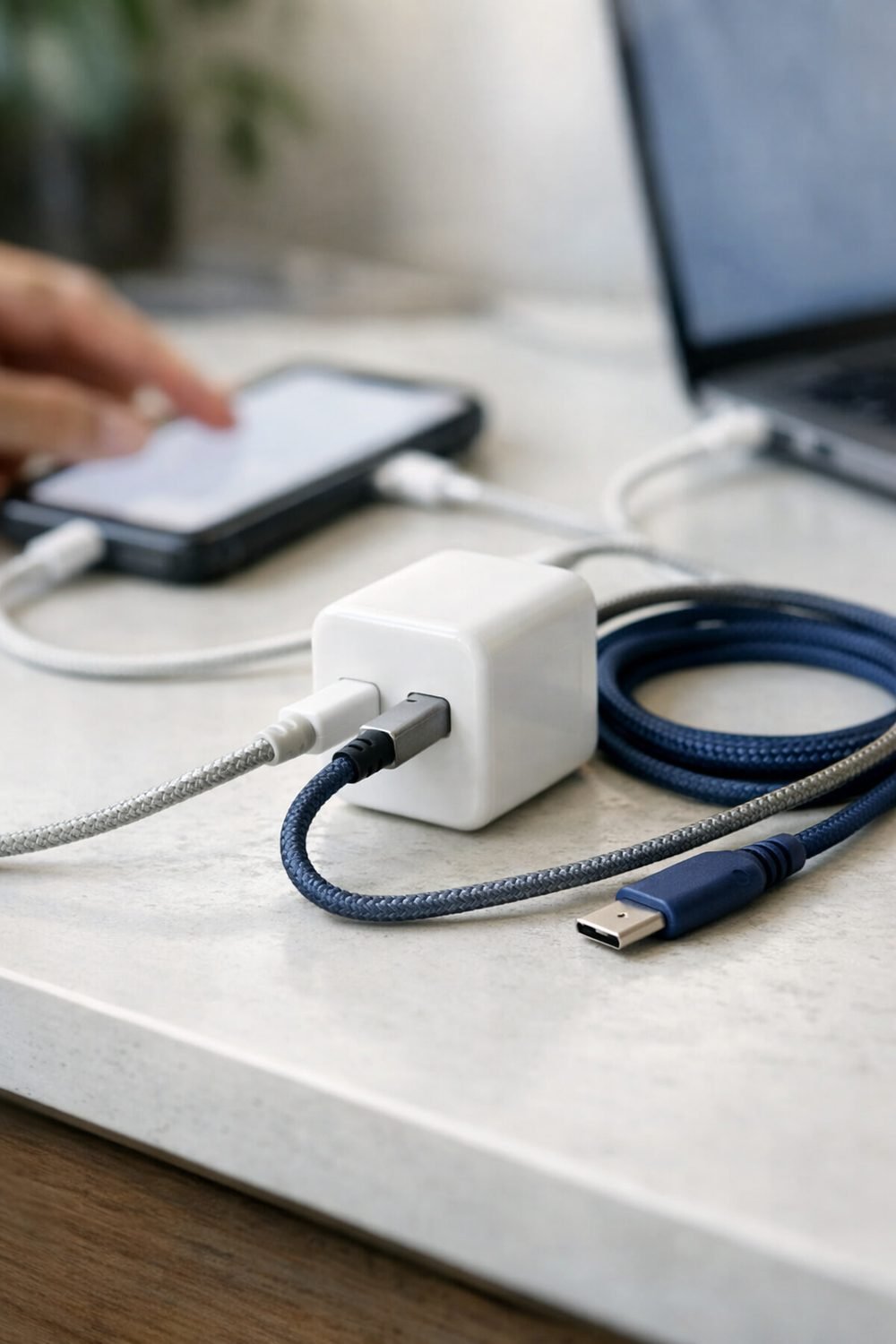
If you use USB-C earphones, a phone, a monitor or a USB microphone, the right charger depends on what each device needs. This guide walks through what to check, from connector type and stated power to ports, safety marks and return terms.
This one is easy to learn the slow way, even before you own a pair of usb c earphones. If you buy a cheap, lesser-known USB-C charger for your laptop, you may plug it in and watch the battery number barely move for an hour. The charger wasn't broken. It just didn't have enough power for that laptop. Since then I check a few simple things before I buy any charger or charging station, and I haven't had a dud since.
The main idea is simple: match the charger to your devices, not the other way around. Here's how I do it.
Short on time? Our top picks: Anker, Belkin, UGREEN and Baseus. See all picks
Start by Listing What You Actually Charge
Before you look at a single product page, grab a piece of paper or open a notes app. Write down every device you charge on a normal day, including any usb c headphones or a Surface Pro. Mine looks something like this:
- Phone
- Laptop
- Wireless earbuds
- A tablet you use maybe twice a week
- A smartwatch
Now ask yourself where each one gets charged. Your phone and earbuds may live on a nightstand. The laptop may stay on a desk. The tablet goes wherever I left it. That tells me I might want one small charger by the bed and a bigger station on the desk, instead of one giant brick trying to do everything.
Be honest here. If you only charge your tablet once a week, don't pay extra for a station built around it.
Check the Connector Type on Each Device, From a USB-C Monitor to USB-C Earphones
"USB-C" gets thrown around a lot, but not everything you own uses it. Look at the actual port on each device. Some older phones, earbud cases, a usb headset, and other gadgets still use other connectors, like the older micro-USB or a brand's own plug.
This matters because a charging station with four USB-C ports won't help much if half your stuff needs a different cable. Some stations mix USB-C ports with the older, larger USB-A ports. That can be handy if you've got a drawer full of older cables you still use.
A quick tip: check your cables, too. A worn-out or cheap cable can slow charging even when the charger is fine. If a cable has a bent tip or frayed spot near the end, I just retire it.
USB-C Charger: What to Check in the Stated Power for Your Devices
This is the part that tripped me up with the laptop. Chargers list their power in watts, usually written as a number followed by "W." Your devices have their own needs, and those can be very different from one another.
A phone usually needs a lot less power than a laptop. Earbuds, like the best wireless earbuds for running, and watches need even less. A laptop can need quite a bit more. The exact numbers vary by model, so I won't guess at them here. The best place to find yours is the device maker's own spec page, the manual, or the original Surface Pro charger or laptop charger that came in the box. That original charger often has the wattage printed right on it in tiny letters.
Here's what I look for on the charger's listing:
- Total power: the maximum the whole charger can put out at once.
- Per-port power: how much a single port can give. This is often lower than the total.
- How power is shared: what happens when you plug in two or three things at the same time.
That last one surprises people. A charger might say a big number on the front, but when you plug in your laptop and phone together, it splits the power. Your laptop might get less than it needs. Good sellers show a small chart explaining how power divides across ports. If a listing doesn't explain it at all, I treat that as a yellow flag and look elsewhere.
Also, a charger with more watts than your phone needs isn't usually a problem. The device generally only takes what it can handle. Still, check your device maker's guidance if you're unsure.
Count the Ports You'll Really Use, Even for a USB Microphone
More ports sounds better, but I think it's a little overrated. A six-port station looks impressive. Then you realize you only ever plug in three things, and the rest just collect dust.
Think about your busiest moment. For many people, that's Sunday night, when the phone, laptop, earbuds, and watch all get charged before the week starts. That's four. So a four-port station covers me, with maybe one spare for a guest's phone.
Also look at how the ports are spaced. Some chargers pack them so tight that a chunky plug blocks the port next to it. Product photos usually show this if you look closely.
If your desk is already a cable mess like mine was, the Desk Setup and Cable Organization Planner below this post can help you map out where the charger, cables, and devices should sit before you buy. Thinking about where you actually sit can show whether a station belongs on the left side of your desk or the right.
And if you're shopping for someone else, our free Gift Ideas for Him Checklist - 10 Ideas by Interest is yours when you join the email list, and a good charger fits nicely on it.
Wall Charger or Desk Station?
A wall charger, like the compact ones from Belkin, plugs straight into the outlet. It's small, good for travel, and fine for one or two devices. A desk station, such as those from Satechi, sits on your desk, often with a cord to the wall, and is easier to reach when you've got several things to charge. You can keep a small wall charger in your bag and a station at home. That combo has worked better for me than trying to make one charger do both jobs.
Look for Safety Marks the Seller Lists
Chargers deal with electricity, heat, and devices you care about. Avoid buying one that tells you nothing about safety testing.
Check the product page and the packaging for safety certification marks. Which ones apply can depend on where you live. If you're not sure what a mark means or which ones matter in your country, look it up on an official source or ask someone who knows electrical products. It's better to spend five minutes checking than to save a few dollars on a charger with no information at all.
Some other things I watch for:
- A clear brand name and a way to contact the seller
- Product photos that match the description
- Reviews that mention heat, especially if several people say it gets very hot
A charger getting a little warm during use is common. A charger that people describe as too hot to touch is one I skip.
Read the Return Terms Before You Click Buy
This is the boring part, and it's the one many people skip. Then I got a charging station that worked with everything except my laptop, and I had to dig through the seller's page to figure out if I could send it back.
Before you buy, check:
- How many days you have to return it
- Whether you need to keep the original box
- Who pays for return shipping
- What the warranty covers, if there is one
Then, when it arrives, test it right away with every device on your list, from your best in ear wireless headphones to your laptop. Don't wait two weeks. Plug in the laptop and phone together and see if both charge at a normal speed. If something's off, you'll still be inside the return window.
Prices on chargers and laptops can jump around a lot, too. If you're also eyeing a new laptop and want its charger to match, the Price-Watch Tracker for Laptops below this post helps you keep notes on prices over time so you're not buying on a whim.
Chargers and Charging Stations Worth a Look
Here are some well-known brands that make USB-C chargers and stations. Treat them as starting points, then match the specs to your own device list.
Anker
Anker makes wall chargers and multi-port desk stations in many sizes, so it suits people who want a lot of choice. Check the per-port power and how it splits when several devices are plugged in.
Belkin
Belkin sells chargers, cables, and docks, and it suits anyone who wants a familiar name for a bedside or desk setup. Check that the listed wattage fits your laptop before you decide.
UGREEN
UGREEN offers chargers and cables across a wide range of sizes and port counts. It suits shoppers who want to compare several options in one place. Check the safety marks and return terms on the exact model you pick.
Baseus
Baseus makes compact travel chargers and desk stations, and it suits people who want something small for a bag. Check the port layout in the photos to see whether chunky plugs might crowd each other.
Apple
Apple sells its own USB-C power adapters and cables, which suit people with iPhones, iPads, or MacBooks who like to stay within one brand. Check which adapter your specific device maker recommends.
Satechi
Satechi makes chargers, hubs, and docks with a tidy desk look, so it suits people who care about how their setup looks. Check that the ports match your mix of USB-C and USB-A devices.
CalDigit
CalDigit is known for docks and hubs aimed at laptop desks, and it suits people who want one connection point for charging and accessories. Check how much power the dock can pass to your laptop.
Check current plans and prices on each brand's own site before you buy.
FAQ
Can I use my laptop's USB-C charger for my phone?
Often, yes, if both use USB-C and support the same charging standard. Most devices only take the power they can handle. Still, check your phone maker's guidance to be safe.
Why does my laptop charge so slowly on some chargers?
The charger probably doesn't give enough power for that laptop, or it's sharing power with other plugged-in devices. A worn cable can also slow things down. Compare the charger's stated wattage with your laptop's original charger.
Is a charger with more ports always better?
Not really. Extra ports only help if you use them, and more ports often means the power gets split more ways. Buy for your busiest charging moment, plus maybe one spare.
Do I need a special cable for fast charging?
Sometimes. Some cables are rated for more power than others, especially for laptops. Check the cable's listing or packaging to see what it supports.
Quick Summary
Write down what you charge and where. Check each device's connector. Compare the charger's power, including per-port power and how it's shared, against what your devices need. Pick a port count that fits real life, not a fantasy desk. Look for safety marks and clear seller info. And read the return terms, then test everything the day it arrives.
If this helped, grab the free Gift Ideas for Him Checklist - 10 Ideas by Interest by joining the email list. Then take a look at the Desk Setup and Cable Organization Planner and the Price-Watch Tracker for Laptops below this post if you want a little help planning your setup before you buy.
Printables and tools that can help
Desk Setup and Cable Organization Planner
Printable pages to plan a tidy desk, label cables and map charging...
See detailsPrice-Watch Tracker for Laptops
A browser notebook where you enter the prices you see and it tells you when you reach your own...
See details