Webcam and Wireless Microphone System Setup for Calls
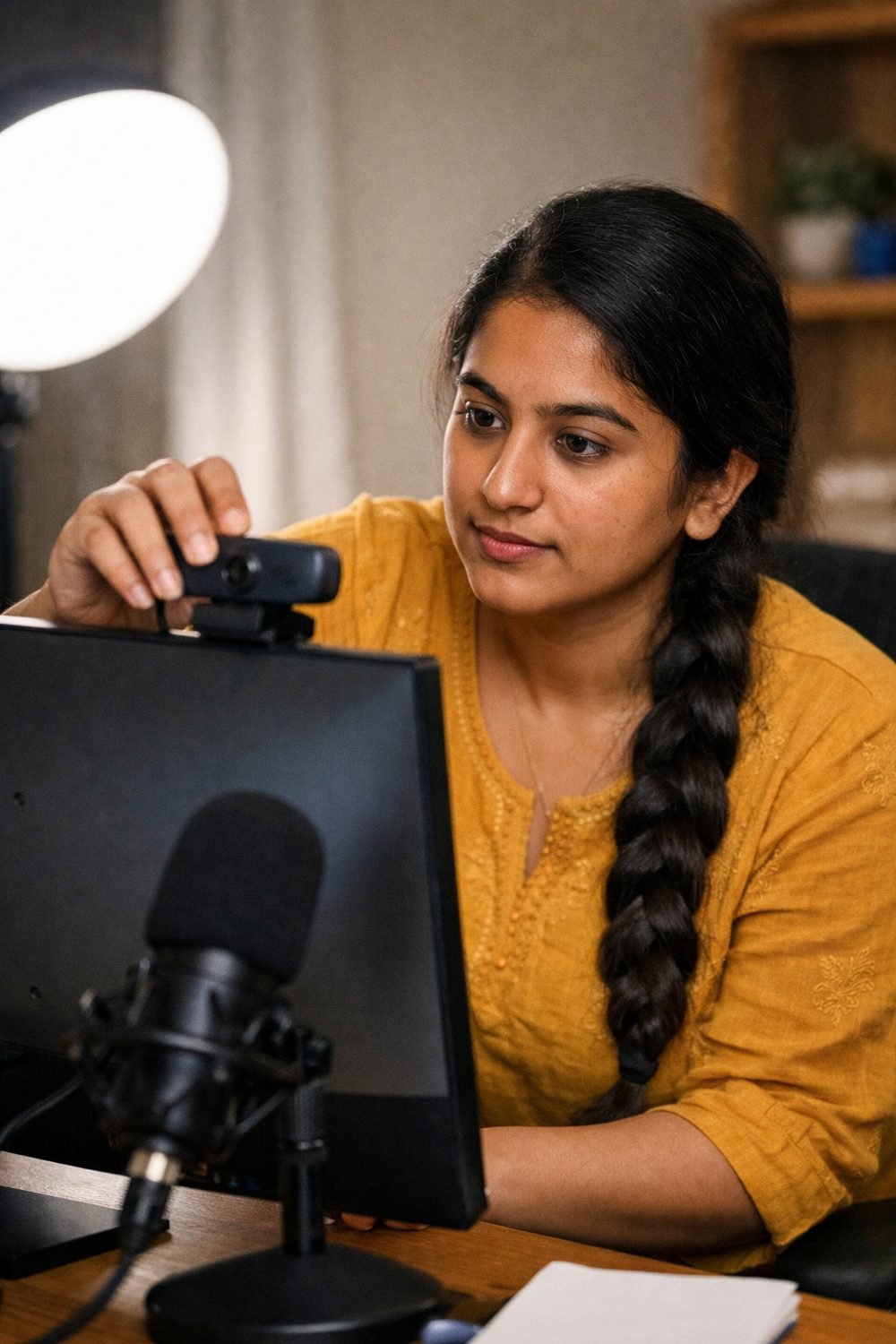
A clear picture and clear sound make any call easier for everyone. This guide shows how to place your webcam, use your light well, and set up a wireless microphone system (or any microphone) so people can see and hear you properly. Each step is short, and you can do them in a few minutes.
Most bad video calls don't come from a cheap webcam. They come from a laptop sitting low on a desk, a bright window behind someone's head, and a microphone picking up the dishwasher two rooms away. Many people learn this the slow way, after months of colleagues politely asking, "Can you say that again?"
The good news is that fixing it takes maybe twenty minutes, and you probably own most of what you need already, even the best earbuds for phone calls might be the pair in your drawer. Below is a step-by-step setup, with the small tricks that tend to make the biggest difference.
Short on time? Our top picks: Logitech C920, Elgato Key Light, Jabra Evolve2 65 and Blue Yeti. See all picks
What you need: webcam and wireless microphone system
- A webcam (the one built into your laptop is fine to start)
- A headset, earbuds with a mic, or a separate USB microphone
- Something to raise your camera: books, a box, or a laptop stand
- A light source in front of you, like a window or a desk lamp
- A quiet-ish spot with a background you don't mind people seeing
- About two minutes before each call for a quick test
You don't need a ring light, a fancy microphone arm, or a green screen. Some of that gear is nice, but I'd skip it until you've tried the free fixes first. You might be surprised how far they get you.
Step 1: Put your webcam at eye level
This is the change people notice most, even if they can't say why. When your laptop sits flat on the desk, the camera looks up at you. Everyone on the call gets a view of your chin and your ceiling light. It's not flattering, and it makes you look like you're peering down at them.
Raise the camera until the lens is level with your eyes, or just a touch above, using books or a laptop stand such as the Rain Design mStand. For a laptop, stack a few books under it. Two old cookbooks and a dictionary can raise your webcam to eye level just as well as a stand, so you can skip buying one at first.
If you use an external webcam, clip it to the top of your monitor, or choose a monitor with webcam built in, and tilt it so the lens points straight at your face. Sit back a little, too. An arm's length away usually frames your head and shoulders nicely.
Tip: If you raise your laptop, plug in a separate keyboard and mouse. Typing on a laptop perched on books gets old fast, and your wrists will thank you.
Step 2: Face your light, not away from it
Here's a common mistake that is easy to make for ages. A typical bad setup has the desk facing a wall and the window behind you. On calls I looked like a shadowy witness in a crime documentary. The camera adjusts to the brightest thing in view, so a bright window behind you turns your face dark.
Flip it. Sit so the window is in front of you, or off to one side at an angle. Daylight on your face is soft and even, and it's free. If you can't move your desk, turn your chair and laptop for calls only.
On cloudy days or evening calls, put a desk lamp behind your laptop, pointing toward you. If it feels harsh, bounce it off a wall or tape a piece of white paper over it to soften the light. Overhead ceiling lights alone tend to make dark shadows under your eyes, so add something in front if you can.
Tip: Turn off any bright lamp that's visible behind you in the frame. Even a small one can make the camera darken everything else.
Step 3: Get the microphone closer to your mouth
If I could only fix one thing, it'd be sound. People will forgive grainy video. They won't forgive having to strain to hear you for an hour.
Laptop microphones sit far from your mouth and close to the fan and keyboard. That's why they pick up typing, echo, and the hum of the room. The simple rule is this: closer is clearer. A mic near your mouth catches your voice and less of everything else.
Your options, from easiest to most involved:
- Earbuds with a built-in mic, such as Apple AirPods. The pair from your phone is often better than your laptop mic.
- A headset with a boom mic. The little arm sits by your mouth. Great for long calls and noisy homes.
- A USB desk microphone or studio microphone. Good sound if you place it close, about a hand's width or two from your mouth, pointed at you.
You can skip the giant podcast-style recording microphone, or an XLR microphone setup, unless you actually record audio. For calls, a basic headset does the job, and it also stops the echo you get when your speakers play the other person's voice back into your mic.
Once your mic is plugged in, open your call app's audio settings and pick it as the input. Apps sometimes default to the laptop mic, even with a headset connected.
Tip: Soft things soak up echo. A rug, curtains, a couch, or even a few cushions nearby can make a bare room sound much less hollow.
Step 4: Tidy what's behind you
You don't need a bookshelf staged like a magazine photo. You just need nothing distracting. Look at your camera preview and check what's in the frame: laundry piles, a messy bed, a door people walk through.
Simple is best. A plain wall, a plant, or a tidy shelf works well. If you can't clean the space, angle your camera so it faces a calmer corner. Background blur in your call app is a decent backup, though it can make your hair and hands look fuzzy around the edges.
While you're at it, sort out the cables near your desk. Mine used to drape across the frame and catch on my chair. If your desk is a bit of a tangle like mine was, the Desk Setup and Cable Organization Planner below this post can help you map out where everything goes before you start moving things around.
Tip: Check your background at the time of day you usually call. Sunlight moves, and a spot that looks fine at 9 a.m. might have a glare at 3 p.m.

Step 5: Close extra apps before you join
Video calls use a fair amount of your computer's power and your internet connection. If you've got thirty browser tabs, a cloud backup running, and a game updating in the background, your call can freeze or your voice can turn robotic.
Before an important call, close what you don't need. Pause big downloads. If other people at home are streaming video, it can help to ask them to hold off during your meeting, or at least know that's a possible cause if things get choppy.
If you can, plug your computer into the router with a cable. Wi-Fi is fine for most calls, but a wired connection tends to be steadier. If you're on Wi-Fi, sitting closer to the router helps.
Tip: Silence notifications. Nothing ruins a presentation like a chat ping you forgot was turned on while you're sharing your screen.
Quick side note: if you're setting up a desk for someone else, or shopping for the tech fan in your life, our free Gift Ideas for Him Checklist - 10 Ideas by Interest is yours when you join the email list.
Step 6: Test for two minutes before every call
This is the step people skip, and it's the one that saves you the most embarrassment. Two minutes is all it takes.
- Open your call app's settings or preview screen.
- Check the camera view. Is your face lit? Is the lens at eye level?
- Speak normally and watch the mic level move. Make sure the right mic is selected.
- Play a test sound to confirm you can hear through your headset or speakers.
- Glance at your background one last time.
Many call apps, such as Zoom, have a test call or a preview screen built in. If yours doesn't, record a short video of yourself talking with your computer's camera app and play it back. Hearing your own voice is a little cringe, but you'll catch problems fast.
Tip: If you try lots of gear and settings, write down what worked. It helps to keep notes on which headset you used, which app settings you changed, and what lighting worked in which room. The Tech Gear Planner Log Book below this post is made for exactly that kind of record keeping, if you like having it all on paper.
Troubleshooting common problems
The app can't find my camera or mic
Unplug the device and plug it back in, then restart the call app. Check your computer's privacy settings too, since some systems block apps from using the camera or mic until you allow it. If it still won't show up, try a different USB port.
People say I sound echoey or hollow
Switch to a headset if you're using speakers, since that usually fixes echo right away. Move your mic closer, and add soft things to the room. Bare walls and hard floors bounce sound everywhere.
My video looks dark or grainy
Webcams get grainy in low light, so more light in front of you usually helps more than a new camera. Wipe the lens, too. Laptop cameras collect fingerprints, and a smudge can make everything look foggy.
The call keeps freezing
Close other apps and pause downloads. Move closer to your router or use a cable. If it keeps happening, try turning your video off for a moment to see if the sound steadies. If it does, your connection is likely the issue, and your internet provider can help check it.
Others hear my keyboard or background noise
Mute yourself when you're not talking. Many call apps also have a noise reduction setting in the audio options, so try turning it on. A mic closer to your mouth picks up less of the room, too.
Gear worth a look
You can get a long way with free fixes, but a few pieces of gear make calls easier once you're ready to buy. Here are some well-known options for different needs.
Logitech C920
A long-running external webcam that suits anyone whose laptop camera looks soft or sits in an awkward spot. Check that it fits your monitor or has a tripod thread if you want flexible placement.
Elgato Key Light
A desk-mounted light that suits people who take calls in dim rooms or in the evening. Check that your desk can take the clamp and how much space you have for it.
Jabra Evolve2 65
A headset with a mic arm, aimed at people on long calls in noisy homes or offices. Check the fit and weight, since you may wear it for hours.
Blue Yeti
A popular USB microphone for people who want fuller sound at a desk. Check that you can place it close to your mouth, as it won't help much from across the desk.
Apple AirPods
Earbuds with a built-in mic that suit people who want one pair for calls, music, and walking around. Check that they work well with your computer, as the experience can differ between Apple and non-Apple devices.
Zoom
A widely used call app with a preview screen, mic selection, and noise reduction settings. Check which features come with the plan you use, and ask what your colleagues or clients already use.
Rain Design mStand
A laptop stand that suits anyone who wants to raise the camera without stacking books. Check that the height works for you, and plan to use a separate keyboard and mouse.
Check current plans and prices on each brand's own site before you buy.
FAQ
Do I need to buy an external webcam online?
Not usually. Fix your lighting and camera height first, because those make a bigger difference than most cameras do. If your built-in camera still looks blurry after that, an external one, even a wireless webcam, might be worth a look.
Is a headset better than a USB microphone for streaming or calls?
For most calls, a headset is easier because the mic stays close and it stops echo. A USB mic can sound richer, but only if you keep it near your mouth. A headset is a solid choice for daily meetings, and a desk mic is worth saving for the occasional recording.
Should I use the virtual background feature?
It's handy when your room is messy or private. It can make edges look odd and use more of your computer's power, though. A real tidy background usually looks more natural.
How far should I sit from the camera?
About an arm's length is a good start. You want your head and shoulders in view with a little space above your head. Too close feels intense, and too far makes you look tiny.
Your next step
Try just Step 1 and Step 2 before your next call. Raise the camera, face the light, and see if anyone notices. Then work through the rest when you have a spare afternoon. If you'd like the free Gift Ideas for Him Checklist, join the email list in the box on this page. After that, take a look at the Desk Setup and Cable Organization Planner and the Tech Gear Planner Log Book below this post if you want help keeping your setup organized.
Printables and tools that can help
Desk Setup and Cable Organization Planner
Printable pages to plan a tidy desk, label cables and map charging...
See detailsTech Gear Planner Log Book
A 100-page log book to record your gear, settings and plans for your home office or study...
See details