Home Network and Device Safety Checklist for a Mesh Network
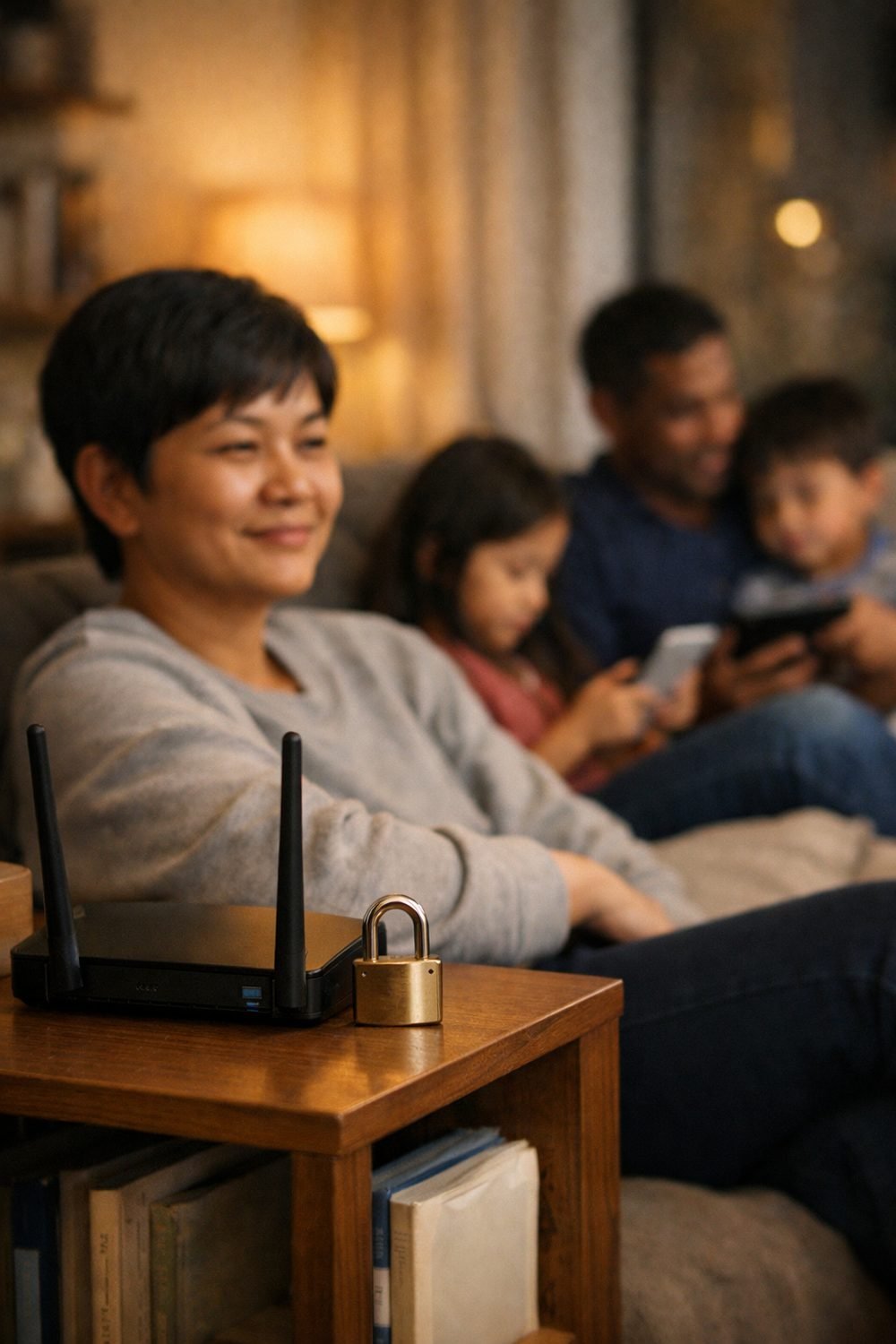
New gear connects to your home network, and the best mesh network in the world won't help if the basics are skipped. Here is what to check first.
This is an easy thing to get wrong, and plenty of people do. A few years back I plugged in a new smart plug, tapped "agree" on everything, and moved on with my day. Weeks later I logged into my router for an unrelated reason and found a list of devices I didn't recognize. Most turned out to be mine: the plug, an old tablet, a printer I forgot had Wi-Fi. But one wasn't. It was a neighbor who'd guessed my very lazy password.
Nothing terrible happened. Still, it made me sit down and build a simple checklist I now run through every time something new comes into the house. A phone, a smart speaker, a game console, a doorbell camera, it doesn't matter. This guide is that checklist, with the reasons behind each step so you know what's worth your time and what you can skip.
You don't need to be a tech person for any of this. If you can follow the setup screen on a new phone, you can do every step here.
Short on time? Our top picks: 1Password, Bitwarden, Google Authenticator and Authy. See all picks
Quick summary
- Log into your router and change the default admin password.
- Use a strong Wi-Fi password and the newest security mode your router offers.
- Update your router, then update every new device before you use it much.
- Change default passwords on new gadgets right away.
- Turn on two-step sign-in for the accounts tied to your devices.
- Put smart home gadgets and visitors on a guest network if you can.
- Go through privacy and permission settings on each device.
- Check your router's device list every month or two.
- Remove old gear you no longer use from your network and accounts.
Start with your best mesh network or router, not the new gadget
Most people start with the shiny new thing, like smart home electronics. It's an understandable habit. But your router is the front door for everything else in the house, so it makes sense to look at it first.
Find your router's admin page
Your router has its own settings page, separate from your Wi-Fi password. The address and login are usually printed on a sticker on the bottom or back. Some newer routers skip the web page and use a phone app instead. If you rent your router from your internet provider, their app or help page will tell you how to get in.
Once you're in, don't panic at all the menus. You only need a handful of them.
Change the admin password
This is the password that lets someone change your router's settings. Many routers ship with a simple default, and those defaults are often easy to find online. Change it to something long and unique. Keeping it in a password manager such as 1Password helps, because you only need it a few times a year and you'd never remember it otherwise.
Turn off features you don't use
Look for options like remote management (controlling the router from outside your home) and WPS (the push-button connect feature). If you don't use them, I'd switch them off. Fewer open doors means fewer things to worry about. If you're unsure what a setting does, leave it alone and check your router maker's support page before changing it.
Get your home Wi-Fi name and password right
This part takes five minutes and covers a lot of ground.
The password
A good Wi-Fi password is long more than it's clever. A short phrase of a few random words is easier to type on a TV remote than a jumble of symbols, and it's still hard to guess. A common weak password is the street name plus the house number. That's exactly what my neighbor tried first.
Here's a quick comparison of what I mean:
- Weak: your pet's name, your address, "password123," or anything printed on the router sticker that you never changed.
- Better: a phrase of four or five unrelated words, like something you'd never say out loud together.
Yes, changing it means reconnecting every device in the house. It's annoying. Do it on a quiet Sunday and get it over with.
The security mode
In your Wi-Fi settings you'll see a security option. Pick the newest one your router offers, which is usually WPA3 or WPA2/WPA3 mixed. If an older device won't connect with the newest mode, the mixed option is a fair middle ground. Avoid anything labeled WEP or "open" entirely.
The network name
Your network name is visible to anyone nearby. Don't put your last name, your address or your apartment number in it. Something boring works fine. Hiding the network name is often suggested online, but honestly I think it's overrated. It mostly makes connecting your own stuff more of a hassle without adding much protection.
Updates: the boring step that matters most
If I could only pick one habit from this whole list, it would be keeping things updated. Updates often fix security problems that the maker found after the device shipped.
Router updates
Check the admin page or app for a firmware update section. Many newer routers, including any best wifi router for large home setups, can update themselves automatically, and I'd turn that on if it's offered. Older routers sometimes need you to click a button. If your router hasn't had an update in years, the maker may have stopped supporting it. That's a sign it might be time to look at a newer one, like the best wireless router for home use, though I'd check the maker's support page to confirm before spending money.
New device updates
When a new gadget comes out of the box, it may have been sitting on a shelf for months. The first thing I do after connecting it is look for updates. Phones, laptops, consoles, smart TVs and many smart home gadgets will have a settings option for this.
A small real-life tip: run updates before you need the device. Nothing kills the fun of a new game console like a long download right when friends show up.
Turn on automatic updates where you can
Most devices let you allow automatic updates. Turn it on. You'll forget to check manually, I promise. It's easy to do for most of a year with an old laptop.
Setting up a new device the careful way
This is where my smart plug mistake happened. Setup screens are designed to get you through fast, and that's not always in your favor.
Change default passwords immediately
Some gadgets, especially cameras, printers and older smart devices, come with a built-in login. If the setup doesn't ask you to change it, go looking for it in the settings. A camera with its factory password is one of the easiest things for a stranger to get into.
Read the permissions before tapping "allow"
A companion app for a smart bulb asking for your location might make sense if it uses sunset timing. A flashlight app asking for your contacts does not. When a request doesn't match what the device does, say no. You can usually change it later if something stops working.
Skip the extras you don't need
Setup often pushes extra accounts, newsletters, shopping features or voice assistant links, even on a bluetooth keyboard and mouse app. You can skip them on the first pass. If I find I actually want one later, I add it. Most of the time I never do.
A side note, since a lot of new gear shows up as presents: if you're the one doing the gifting, our free Gift Ideas for Him Checklist sorts 10 ideas by interest, and you can grab it from the sign-up box on this page.
Example: setting up a video doorbell
Here's how I'd do it, start to finish:
- Install the app from the official app store on your phone.
- Create the account with a unique password, not one you use elsewhere.
- Turn on two-step sign-in for that account.
- Connect the doorbell to Wi-Fi and run any update it offers.
- Check who else has access in the app's sharing settings.
- Look at the recording and privacy options, like motion zones, so it isn't watching the sidewalk or your neighbor's yard more than it needs to.
The whole thing takes maybe twenty minutes longer than rushing it. Worth it.
Lock down the accounts behind your devices
A lot of people focus on the Wi-Fi and forget that most gadgets now live through an online account. If someone gets into that account, they don't need your Wi-Fi at all.
Use unique passwords
Reusing one password across your email, your camera app and your smart speaker means one leak can open everything. A password manager like Bitwarden makes unique passwords painless. There are free and paid ones. Compare a couple and see which feels easiest for you to actually use, since the one you'll stick with beats the "best" one you abandon.
Turn on two-step sign-in
Two-step sign-in (sometimes called two-factor or 2FA) asks for a second check, like a code from an app or a text, when someone logs in from a new place. An authenticator app such as Google Authenticator is generally stronger than text messages, but text codes are still much better than nothing. Start with your email account, because that's where password resets go.
Check which devices are signed in
Many account pages show a list of logged-in devices. An old phone that has been sold can still be signed into your account, so check for that. Removing it took ten seconds.
Give smart gadgets and smart locks their own space
Smart plugs, bulbs, robot vacuums and even the best smart locks for home are handy, but they don't always get updates for as long as phones and laptops do. Keeping them separate from your main devices is a smart move if your router allows it.
Using a guest network
Most routers can create a guest network with its own name and password. You can put two kinds of things on it:
- Visitors' phones, so you're not handing out your main password.
- Smart home gadgets that don't need to talk to your laptop or phone directly.
Look for a setting that stops guest devices from seeing each other or your main network. The wording varies by router.
When this doesn't work well
Here's the honest part. Some smart gadgets need to be on the same network as your phone to set up or control them, and casting from your phone to a TV often won't work across networks. If something breaks after the move, it's fine to put it back on the main network. A guest network is a nice extra, not a rule you have to follow for every device.
Privacy settings worth a second look
Security is about keeping people out. Privacy is about how much the devices you let in collect. Both deserve a look.
Smart speakers and voice assistants
Check the app for options on voice recordings. Many let you review, delete or limit how long recordings are kept. There's usually a physical mute button too. You can mute the assistant during long conversations, since it may wake up at random words.
Smart TVs
TVs often have viewing data or ad settings buried in a privacy menu. The names differ by brand, so poke around for anything about viewing information, ads or personalization, and turn off what you don't want. The TV will still work fine.
Cameras inside the home
Indoor cameras are the ones I'm pickiest about. Check who has shared access, whether there's a privacy mode, and whether you really need it pointed at the living room all day. Sometimes a camera aimed at the front door does the job without filming your family eating breakfast.
Shared devices, laptops for working from home and kids in the house
When more people use the network, the risks spread out a bit. A teenager installing a random game mod is a different situation from a grandparent getting a tablet for the first time.
Separate profiles
Laptops, including the best laptop for working from home, plus tablets and consoles usually allow separate user profiles. Give each person their own, and keep the admin or parent profile for yourself. That way one person's app downloads don't change settings for everyone.
Built-in parental controls
Many routers, consoles and phones include parental controls for screen time and content filters. They're worth a look, but no tool catches everything. Talking with kids about not clicking strange links or sharing passwords often does more than any filter you can install.
Helping less tech-savvy family members
When I set up a tablet for a relative, I turn on automatic updates, set up two-step sign-in with them sitting next to me, and write down where the important passwords are kept. Then I check in on it next time I visit. Simple, and it saves a lot of confused phone calls.
Keep it up with a light routine
You don't need to do the full checklist every week. A small habit every month or two keeps things in good shape.
Review the device list
Your router's admin page or app shows what's connected. Scan it. If you see something you don't recognize, try unplugging your own devices one by one to figure out what it is. If it's still a mystery, change your Wi-Fi password and reconnect your stuff.
h3>Retire old gear properlyBefore selling, gifting or recycling a device, sign out of your accounts and do a factory reset. Then remove it from the account pages it was linked to. An old phone sitting in a drawer but still logged into everything is a loose end. A sticky note on the router listing "things to remove" can help you actually follow through.
Common mistakes
These mistakes are common, so there's no judgment here.
- Leaving the router admin password at its default. People change the Wi-Fi password but forget this one exists.
- Skipping updates on new devices. "It's brand new" doesn't mean it's up to date.
- Reusing the same password everywhere. One leak shouldn't open every door in your house.
- Tapping "allow" on every permission. If it doesn't make sense for the device, decline it.
- Using text-only security questions with easy answers. Your first pet's name is probably on social media somewhere.
- Forgetting old devices. Sold phones and dead tablets can stay logged into accounts for years.
- Overdoing it. Some people get so worried they change twenty settings they don't understand and then nothing works. Stick to the basics first. They cover most of what matters.
- Trusting public Wi-Fi like home Wi-Fi. Coffee shop networks aren't the place for banking or changing important account settings if you can wait until you're home.
Tools and gear that can help with this checklist
You don't need to buy anything to follow the steps above, but a few well-known tools make the job easier. Here are some that fit a home network and device safety routine.
1Password
Suits anyone who wants a password manager that works across phones and computers, including for long router admin passwords. Check whether it offers family sharing if several people in your home need access.
Bitwarden
A good fit if you want to try a password manager with a free tier before committing. Check how its sharing and recovery options work so you don't lock yourself out.
Google Authenticator
Suits people turning on two-step sign-in who want a simple code app. Check how to move your codes to a new phone before you replace or sell your old one.
Authy
Another authenticator app, useful if you want to use codes on more than one device. Check the backup settings and decide whether that setup feels right for you.
Eero
A mesh Wi-Fi system that suits people who prefer managing the router from a phone app. Check which security and guest network options come with the plan you pick, and whether your internet provider's gear works with it.
TP-Link Deco
A mesh Wi-Fi line for homes that need coverage in several rooms. Check that the model you choose still gets firmware updates and supports WPA3.
Netgear Nighthawk
A router line that suits people who like a web admin page with plenty of settings. Check the maker's support page for update history and the guest network options on your specific model.
Malwarebytes
Suits people who want an extra scanner for laptops and phones, such as a shared family computer. Check which devices a plan covers and don't run several security tools that conflict.
Check current plans and prices on each brand's own site before you decide.
FAQ
Do I need to buy a new router to be safe?
Not usually. If your current router still gets updates and supports a modern security mode like WPA2 or WPA3, the steps in this guide go a long way. If the maker has stopped releasing updates, check their support page and consider whether an upgrade makes sense for you.
How often should I change my Wi-Fi password?
If it's already long and unique, you don't need to change it on a schedule. Change it if you've shared it widely, if someone who moved out still has it, or if you spot devices you can't identify on your network.
Is a guest network really worth setting up?
For visitors, yes, since it saves you from handing out your main password. For smart gadgets, it's a nice extra if they still work properly there. If something stops working, moving it back to your main network is a reasonable choice.
What if I don't understand a setting on my router?
Leave it as it is and look it up on the router maker's support page first. Changing settings you're unsure about can knock devices offline. If you're still stuck, your internet provider's support line or a tech-savvy friend can help.
If you only do one thing today, log into your router and change that admin password. It takes five minutes and you'll feel better right away. After that, grab the free Gift Ideas for Him Checklist from the sign-up box on this page, so the next time new gear comes into the house as a present, you've got ideas ready and a safety checklist to run it through.
1. Change default passwords
On the router and new devices.
2. Update the software
Router, phone and laptop.
3. Use a strong Wi-Fi password
Not the default one.
4. Keep a backup
More than one copy.
5. Check what is connected
Remove devices you do not use.
6. Read the seller's page
Details can change.
Ready to look?
This is an affiliate link. Prices and terms change, so check the seller's page.
Want a printable to keep track while you work? Get our free gift ideas for him checklist - 10 ideas by interest.