Best Touch Screen Laptop Buyer's Guide: Screen, Storage, Ports
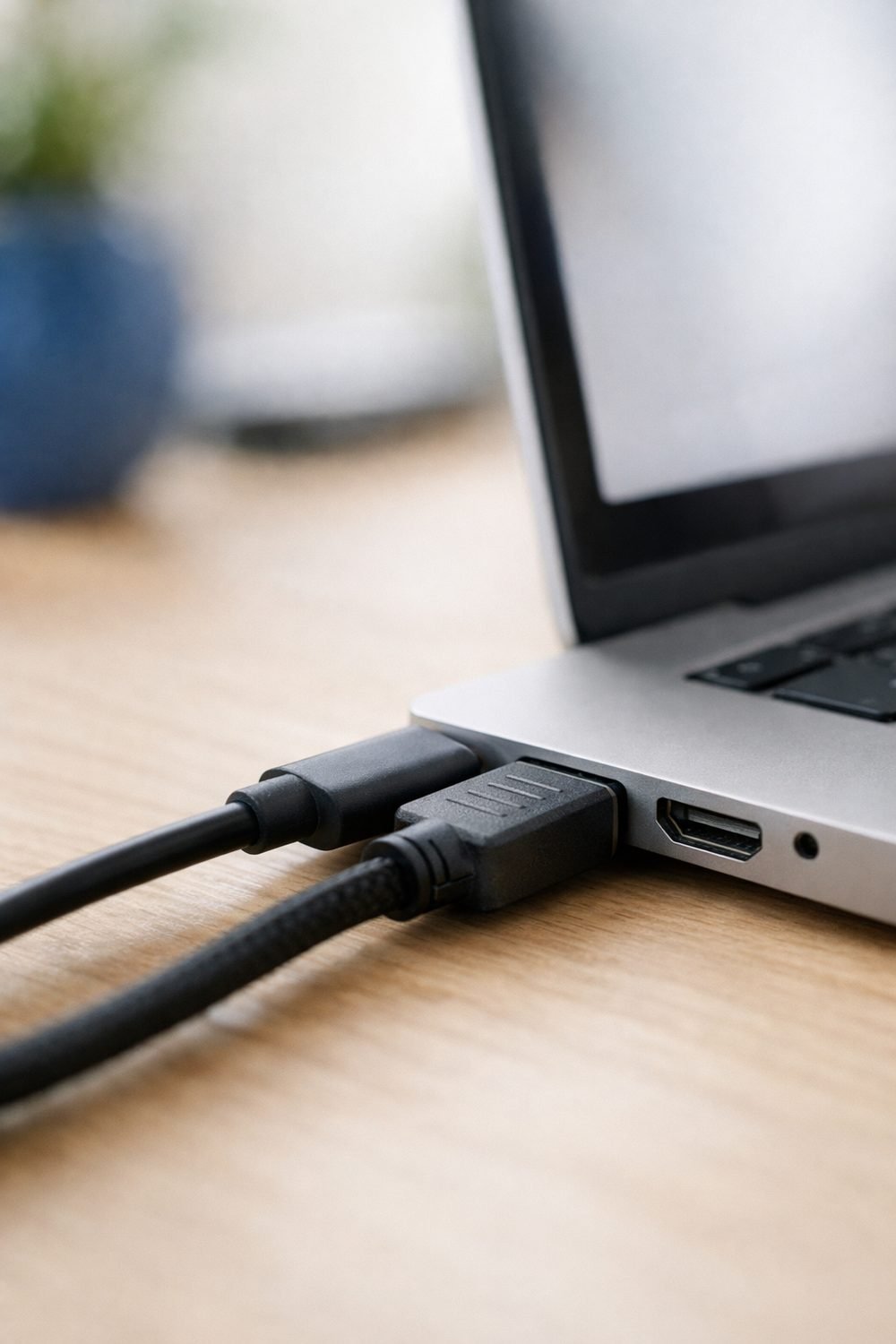
Laptops vary a lot, even when two of them look almost the same on a store shelf. Laptop needs vary a lot, from the best touch screen laptop for a note taker, such as an HP Spectre x360-style convertible, to a simple pick for a student. The questions that cause the most trouble usually aren't about the processor. They're about the screen they stare at all day, the storage that fills up faster than expected, and the ports they didn't think about until they needed to plug something in.
This laptop buyers guide covers those three things in plain terms. This guide covers what to compare, what is worth paying extra for, and what is mostly marketing.
Short on time? Our top picks: Dell XPS 13, Apple MacBook Air, Lenovo ThinkPad T14 and HP Spectre x360. See all picks
Quick summary: how to choose a laptop
- Screen size: 13 to 14 inches is easy to carry. 15 to 16 inches is easier on your eyes if the laptop mostly stays on a desk.
- Resolution: Full HD (1920 x 1080) is a fair minimum on most sizes. Higher looks sharper but can cost battery life.
- Brightness and finish: If you work near windows or outside, a brighter screen matters more than a sharper one.
- Storage type: Get an SSD. Skip laptops that only have a spinning hard drive.
- Storage size: 256GB works for light use with cloud storage. 512GB is a safer middle ground for most people.
- Ports: Count what you plug in today, then add one. Check what each USB-C port actually supports.
- Upgrades: Many thin laptops can't be upgraded later. Buy enough storage up front.
Picking a Screen Size You'll Actually Like
Screen size is the first thing most people notice and the last thing they can change. You can add a mouse, a dock, or an external drive later. You can't make a 13-inch screen bigger.
Small laptops (13 to 14 inches)
These are the ones you forget are in your bag. A 13-inch laptop is easy to carry and works well on trains and in coffee shops. If you edit long spreadsheets on a small screen at the kitchen table, you may quickly find it frustrating, so consider a larger display or an external monitor. Text was fine. Having two windows side by side was cramped.
A 14-inch screen is a nice compromise. It's often only a little bigger in the bag than a 13-inch model because the borders around the screen have gotten thinner.
Larger laptops (15 to 16 inches)
If your laptop lives on a desk and only travels now and then, a bigger screen is kinder to your neck and eyes. Many of these also have a number pad on the keyboard, which is handy if you type numbers a lot.
The trade-off is weight and bag space. Check the weight on the spec sheet and pick up the laptop in a store if you can. A few hundred grams sounds like nothing until it's on your shoulder for an afternoon.
Aspect ratio, the part people skip
Aspect ratio is the shape of the screen. The common one is 16:9, which is wide and short. Some laptops now use 16:10 or 3:2, which are a bit taller. Taller screen shapes are a good fit for reading and writing because you see more lines of text without scrolling. For movies, 16:9 fills the screen better. If you mostly work with documents, look for 16:10.
Resolution and Panel Type Without the Jargon
Resolution is how many tiny dots make up the picture. More dots means sharper text and images, up to a point.
What the numbers mean
- 1366 x 768 (HD): Still shows up on some cheap laptops. Text looks fuzzy on anything bigger than a small screen. I'd skip it.
- 1920 x 1080 (Full HD or FHD): A good, sharp picture on 13 to 16 inch screens for everyday work.
- 1920 x 1200 (WUXGA): The 16:10 version of Full HD. Same sharpness, slightly taller.
- 2560 x 1440 and up (QHD, 2.5K, 3K, 4K): Crisper. Nice for photo work or if you sit close. Often uses more battery.
Is 4K worth it on a laptop?
Honestly, for most people, no. On a 14-inch screen, the jump from Full HD to something like 2.5K is noticeable. The jump from there to 4K is much harder to see at normal distance. Meanwhile, higher resolution screens can drain the battery faster. Check reviews for battery tests on the exact model and screen option, because the same laptop can come with different screens.
IPS, OLED, and the cheaper panels
You'll see panel types listed in the specs. Here's how I think about them:
IPS panels have good colors and look fine from an angle. They're a safe default.
OLED panels have deep blacks and rich colors. Movies look great. Some people notice a flicker effect at low brightness on certain models, and they tend to cost more. It is worth looking at one in person before paying extra.
TN or unnamed budget panels can look washed out, especially when you tilt the screen. If the spec sheet won't say what panel it uses, that's often a hint it's a basic one.
Brightness, Glare, and Picking the Best Touch Screen Laptop
This is the section I wish someone had told me about before my first laptop. A sharp screen means nothing if you can't see it next to a sunny window.
Brightness in nits
Brightness is measured in nits. Higher numbers mean a brighter screen. Some budget laptops have dim screens that are fine in a dark room but struggle near windows. If you work outside, on a porch, or in a bright office, look for higher numbers on the spec sheet and check what reviewers say about real use. A hands-on review is a better guide than the box, since brands sometimes list peak numbers that you won't see in daily use.
Glossy or matte
Glossy screens make colors pop, but they act like a mirror under lights. Matte screens cut glare and look a bit softer. If you've ever seen your own face in a laptop screen while trying to read an email, you know which camp I'm in. Matte is often the better choice for work. Glossy is fine if you're mostly at home with controlled lighting.
Do you need a touch screen laptop?
Touchscreens are nice on laptops that fold into a tablet shape, like the HP Spectre x360. On a regular clamshell laptop, I barely used mine. If you rarely use the touch screen, it may mostly get touched by accident and collect fingerprints. Touch also often means a glossy screen and a bit more weight. If you won't draw or take notes with a pen, I'd save the money.
Storage Type: Why SSD Is the Only Answer
Storage is where your files, apps, and operating system live. The type of storage changes how fast the whole laptop feels, more than most people expect.
SSD versus hard drive
An SSD (solid state drive) has no moving parts. Laptops with one start up quickly and open apps fast. An HDD (hard disk drive) has a spinning disk inside. It's slower, more fragile if dropped, and makes the laptop feel sluggish.
An older laptop can take several minutes to become usable after turning on, which is frustrating. It wasn't broken. It just had a hard drive. If you see a new laptop with only an HDD, walk away, even if the price looks great.
NVMe, SATA, and eMMC
Not all SSDs are the same. NVMe SSDs are the fast kind most good laptops use now. SATA SSDs are slower but still much better than a hard drive. eMMC storage shows up on very cheap laptops and is closer to phone storage. It's slow and usually small. For a basic web and email machine, eMMC can work, but it fills up fast and system updates can become a headache.
How Much Storage Do You Really Need?
This one depends on how you use your laptop, so let me give you examples instead of one number.
Light use: 256GB
If you mostly browse, stream, write documents, and keep photos in cloud storage, 256GB can be enough. Keep in mind the operating system and updates take a good chunk of that before you install anything. A 256GB laptop can fill up within a year without much effort, mostly from photos synced from your phone.
Most people: 512GB
This is where I'd point most buyers. It gives room for apps, some offline files, and a few games or projects without constant cleanup. If the price jump from 256GB to 512GB is small on the model you want, I'd take it.
Heavy use: 1TB or more
Video editing, big photo libraries, large games, or work files you need offline all eat space quickly. A 1TB drive gives breathing room. You can also pair a smaller internal drive with an external one, but carrying a separate drive gets old fast.
Can you upgrade it later?
Some laptops have an open slot or a replaceable drive. Many thin models have storage soldered to the board, which means what you buy is what you're stuck with. The seller's page or the maker's support documents usually say whether storage can be replaced. If it isn't clear, assume it can't and buy enough from the start.
Quick side note: if you're shopping for a laptop as a present, our free Gift Ideas for Him Checklist, with 10 ideas sorted by interest, can help you find a small add-on to go with it.
Ports: The Part You'll Regret Ignoring
Ports are the holes on the side of the laptop. Thin laptops often have fewer of them, and you don't always notice until you need to plug in a mouse and a drive at the same time.
Count your stuff first
Before shopping, make a quick list of what you plug in. For me, it's a charger, a mouse receiver, a monitor, and sometimes headphones or a card reader for my camera. Then add one more for the thing you'll buy next year. That number is a good guide for how many ports you want.
The common ports, one by one
- USB-A: The older, rectangle-shaped USB. Most mice receivers, flash drives, and printers still use it. I like having at least one.
- USB-C: The small oval port. It can do charging, data, and video, but not every USB-C port does all three.
- Thunderbolt or USB4: These use the USB-C shape but support faster speeds and more features, like running docks and multiple monitors. Often marked with a small lightning symbol.
- HDMI: Plugs straight into most TVs, monitors, and projectors. Great if you present in meeting rooms.
- Headphone jack: Still useful for wired headphones and some mics. A few laptops have dropped it, so check.
- SD card reader: Handy for photographers. Otherwise, easy to skip.
- Ethernet: Rare on thin laptops now. Useful if your Wi-Fi is unreliable or you work in an office with wired internet.
Not all USB-C ports are equal
This trips up a lot of people. Two laptops can both say "2 x USB-C" and behave very differently. One might charge and output video from both ports. Another might only charge from one side and only send data from the other. Look on the spec sheet for words like "Power Delivery" (charging), "DisplayPort" (video), and "Thunderbolt" or "USB4" (faster, more features). Little icons printed next to the ports can help too.
Docks and dongles
If you buy a laptop with only USB-C, you'll probably end up with an adapter or a dock. That's not the end of the world. A small hub at your desk can cover extra ports without much trouble. But it's another thing to lose, and cheap ones can be flaky. If you know you'll need HDMI and USB-A regularly, a laptop that has them built in saves hassle, and it can also drive a wide screen monitor at your desk.
Laptop Comparison Examples
Here's how I'd think about three common types of buyers. These are setups, not specific models.
The best laptop for students who carry it everywhere
A 13 or 14 inch screen, like the kind on a Dell XPS 13, with Full HD or 16:10 resolution, matte if possible. A 512GB SSD so class files, apps, and photos fit. At least one USB-A and one USB-C that charges. A headphone jack for lectures recorded online. Touch is optional, and I'd skip it unless they take handwritten notes.
The best work laptop for a home office
A 14 or 16 inch screen with good brightness, since home offices often have big windows. A 512GB SSD. HDMI or a USB-C port with video to connect a monitor. Plenty of ports, or a plan for a dock. A better screen is worth paying more for than a faster processor here, because you'll stare at it all day.
The photo or video hobbyist
A sharper screen with good color, like a quality IPS or OLED panel. A 1TB SSD, or more if possible. Thunderbolt or USB4 for fast external drives. An SD card reader is a real time saver. Battery life will likely be shorter with a high resolution screen, so check reviews.
Common Mistakes
These are common mistakes, and many buyers make at least a few of them.
- Buying the best cheap laptop on paper with only 128GB or eMMC storage. It looks like a deal until it's full after a few updates.
- Paying for 4K on a small screen. You'll likely notice the shorter battery life more than the sharper picture.
- Ignoring brightness. A dim screen next to a window is frustrating every single day.
- Assuming every USB-C port charges and runs a monitor. Check the specs for each port.
- Forgetting about upgrades. Many thin laptops can't add storage later. Buy what you'll need for a few years.
- Choosing a big screen, then carrying it daily. If it's heavy in the store, it'll feel heavier at the end of a long day.
- Reading only the box. Spec sheets leave out things like panel quality and real battery life. Look for hands-on reviews of the exact configuration.
Laptop picks worth a look
These are well-known laptop lines that fit the buyer types above. Check the exact model and configuration before you buy, since screens, storage and ports often differ within one family.
Dell XPS 13
A good fit for students and travelers who want a small, light laptop. Check which screen option the configuration includes, and how many ports it has, since thin models tend to have few.
Apple MacBook Air
Suits people who want a simple, portable laptop for documents, browsing and light creative work. Check the storage size carefully, because it can't be upgraded after purchase, and plan for a hub if you need extra ports.
Lenovo ThinkPad T14
A practical choice for a home office or work laptop, with a reputation for comfortable keyboards. Check the screen option, since brightness and finish can vary between versions.
HP Spectre x360
Suits note takers who want a laptop that folds into a tablet shape and works with a pen. Check whether a pen is included or sold separately, and look at battery reviews for the screen option you pick.
ASUS Zenbook 14 OLED
Worth a look if you want a richer screen for movies and photos at a portable size. Check reviews for battery life and see the screen in person if you can, since OLED isn't for everyone.
Microsoft Surface Laptop
A fit for people who like a taller screen shape for reading and writing. Check the port selection against your daily gear, as you may need an adapter.
Acer Aspire 5
A budget-friendly line for students and everyday use. Check that the configuration has an SSD with enough capacity and a screen that's bright enough for your room.
Check current plans and prices on each brand's own site before you decide.
FAQ
Is 8GB of memory enough if I get a good SSD?
A fast SSD helps, but it doesn't replace memory (RAM). For light browsing and documents, 8GB can work, though many people find 16GB more comfortable with lots of tabs open. Check whether the memory can be upgraded on the seller's page before deciding.
Should I get a touchscreen for a regular laptop?
Only if you'll actually use it, like drawing or taking notes with a pen. On a standard laptop, many people barely touch the screen. Touch can also add glare, weight, and cost.
Can I just use an external drive instead of buying more storage?
Yes, and it's a fine way to store backups or big files you rarely need. It's less handy for things you open every day, since you have to carry and plug in the drive. You should still buy enough internal storage for your apps and current work.
How do I know if a USB-C port supports video or charging?
Look at the full spec sheet from the maker, not just the store listing. Look for terms like DisplayPort, Power Delivery, Thunderbolt, or USB4, and check the small icons printed next to the ports. If it's still unclear, ask the seller before you buy.
If you only take one thing from this guide, let it be this: look at the screen, storage, and ports as carefully as the processor, because those are what you'll notice every day. Write down your must-haves in a simple laptop checklist before you shop so a shiny sale price doesn't talk you out of them. And if this laptop is a gift, grab our free Gift Ideas for Him Checklist next. It's a quick way to find a matching extra he'll actually use.
1. Write down the job
Describe what you will do.
2. Check the screen
Size, brightness and finish.
3. Check storage and memory
Capacity and speed.
4. Check ports and charging
Make sure it suits your gear.
5. Read the return terms
Know your options.
6. Read the seller's page
Specs change.
Ready to look?
This is an affiliate link. Prices and terms change, so check the seller's page. We do not claim to have tested every model.
Want a printable to keep track while you work? Get our free gift ideas for him checklist - 10 ideas by interest.